


A fresh Ubuntu Server install plus apt install docker-ce docker-compose-plugin gets you a working Docker host in about two minutes. It also gets you four defaults that are fine for a laptop and a liability on a box serving traffic. None of them show up until something breaks -- a full disk, a port that was supposedly firewalled, or a container restart in the middle of a deploy window.
overlay2 is the default -- check what it's sitting on
overlay2 has been Docker's default storage driver since well before 2026, so you don't need to set it explicitly. What you do need to check is the filesystem underneath /var/lib/docker. On ext4 it just works. On XFS, overlay2 needs ftype=1 -- older XFS filesystems (or ones built with defaults from a few years back) often have ftype=0, and Docker will fall back to a slower driver or fail outright depending on version.
docker info --format '{{.Driver}}'
# overlay2

findmnt -no FSTYPE,SOURCE /var/lib/docker
# ext4   /dev/sda1   -- fine
# xfs    /dev/sda1   -- check ftype below

xfs_info /var/lib/docker | grep ftype
# ftype=1   -- good
# ftype=0   -- rebuild the filesystem before you put real workloads on it
If /var/lib/docker lives on a separate volume (common on cloud images), run xfs_info against that mount, not the root filesystem.
json-file logs have no size limit by default
Docker's default logging driver is json-file, and out of the box it keeps every line a container ever writes to stdout/stderr, forever, in /var/lib/docker/containers/<id>/<id>-json.log. A quiet container is fine. A worker that logs every job, or an app that didn't get the memo about log levels, will fill the disk -- and it's always the disk holding /var/lib/docker itself, so when it fills, the daemon stops being able to do anything, including letting you clean up easily.
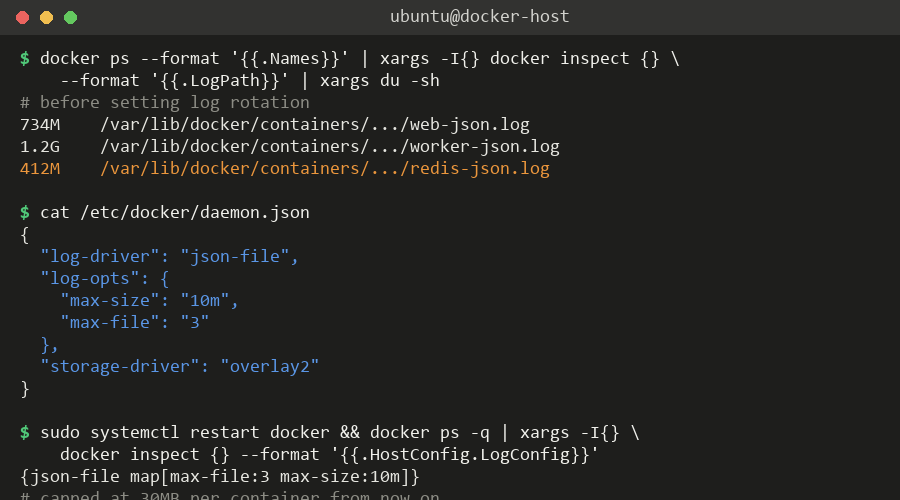
{
  "log-driver": "json-file",
  "log-opts": {
    "max-size": "10m",
    "max-file": "3"
  },
  "storage-driver": "overlay2"
}
Put that in /etc/docker/daemon.json and restart the daemon. One catch that costs people an afternoon: this only applies to containers created after the change. Anything already running keeps its original (unlimited) log config until it's recreated -- a restart isn't enough, you need docker compose up -d --force-recreate or equivalent.
ufw says deny, Docker says otherwise
This is the one that actually causes incidents. ufw manages the filter table's INPUT chain. Docker, when you publish a port with -p, writes its own rules into the nat and filter tables' DOCKER chain, reached through FORWARD rather than INPUT -- because container traffic is, from the kernel's point of view, being routed to a different network namespace, not delivered locally. ufw's rule set is never consulted for that traffic.
Concretely: you run ufw deny 5432, feel good about it, then run a container with -p 5432:5432, and Postgres is reachable from the entire internet. ufw's status output will still happily tell you the port is denied.
Three ways to actually fix this, in order of how much it changes your workflow:
- Bind to loopback or a private interface:
-p 127.0.0.1:5432:5432or-p 10.20.0.5:5432:5432, and put a reverse proxy or VPN in front of anything that needs to be reachable. Least disruptive, works for most app containers. - Use the
DOCKER-USERchain, which Docker guarantees is evaluated before its own rules and leaves alone across restarts and upgrades:
This is the supported way to apply ufw-style restrictions to published container ports -- don't try to edit thesudo iptables -I DOCKER-USER -s 10.20.0.0/16 -j ACCEPT sudo iptables -I DOCKER-USER -j DROPDOCKERchain directly, dockerd rewrites it. - Set
"iptables": falseindaemon.jsonand manage every rule yourself. Fully consistent with ufw, but you lose automatic port publishing entirely and now own every NAT rule by hand. Only worth it on hosts where networking is already tightly controlled.
unattended-upgrades and a Docker host don't mix well by default
Ubuntu's unattended-upgrades ships enabled, pulling in security updates from the -security pocket nightly. docker-ce and containerd.io usually come from Docker's own apt repo, so unattended-upgrades leaves them alone unless you explicitly add that origin -- check /etc/apt/apt.conf.d/50unattended-upgrades before assuming either way. The real risk is two steps removed: a kernel or libc update triggers Automatic-Reboot, and every container on the host goes down with no drain, no warning, whenever that update happens to land.
# /etc/apt/apt.conf.d/50unattended-upgrades
Unattended-Upgrade::Origins-Pattern {
    "origin=Ubuntu,archive=${distro_codename}-security";
};
Unattended-Upgrade::Automatic-Reboot "true";
Unattended-Upgrade::Automatic-Reboot-Time "04:00";
Pin that reboot window to a time you actually know about, and separately pin the Docker engine packages so a docker-ce bump never lands mid-day without you choosing it:
sudo apt-mark hold docker-ce docker-ce-cli containerd.ioThen do engine and image updates on your own cadence -- a systemd timer running docker compose pull && docker compose up -d after hours, or a scheduled apt-mark unhold && apt upgrade && apt-mark hold during a maintenance window -- instead of letting apt decide for you.
before you call it production-ready
- Confirm overlay2's filesystem has the right mount options (
ftype=1on XFS) - Set
log-optsindaemon.jsonand recreate existing containers to pick it up - Add
DOCKER-USERrules or bind publishes to a private interface -- don't trust ufw alone - Pin
docker-ce/containerd.ioand schedule your own update window